VCS Provider: Gitlab
Integrating your Gitlab application with DeepSource requires a Gitlab application. This document outlines the configuration, permission requirements and app configuration to get started with your GitLab account and DeepSource Enterprise.
Creating a GitLab application.
-
On the top right corner, click on your profile picture. From the drop-down menu, select "Preferences".
-
Select "Applications" from the sidebar which appears on the left.
-
You'd be prompted to fill a form to create a new application. Enter the following details:
Note: Replace
ORGANIZATION_NAMEwith the name of your organization, andHOSTNAMEwith the actual hostname on which you plan to deploy DeepSource to.Field Value Example Name DeepSource ORGANIZATION_NAMEDeepSource Stark International Redirect URI https:// HOSTNAME/accounts/gitlab/login/callback/bifrost/https://deepsource.stark.com/accounts/gitlab/login/callback/bifrost/ Confidential trueScope Check trueforapi,read_userandread_repository -
Click "Save Application".
-
It shall provide you with
APPLICATION_IDandSECRET. Enter these values in the DeepSource Enterprise admin console.
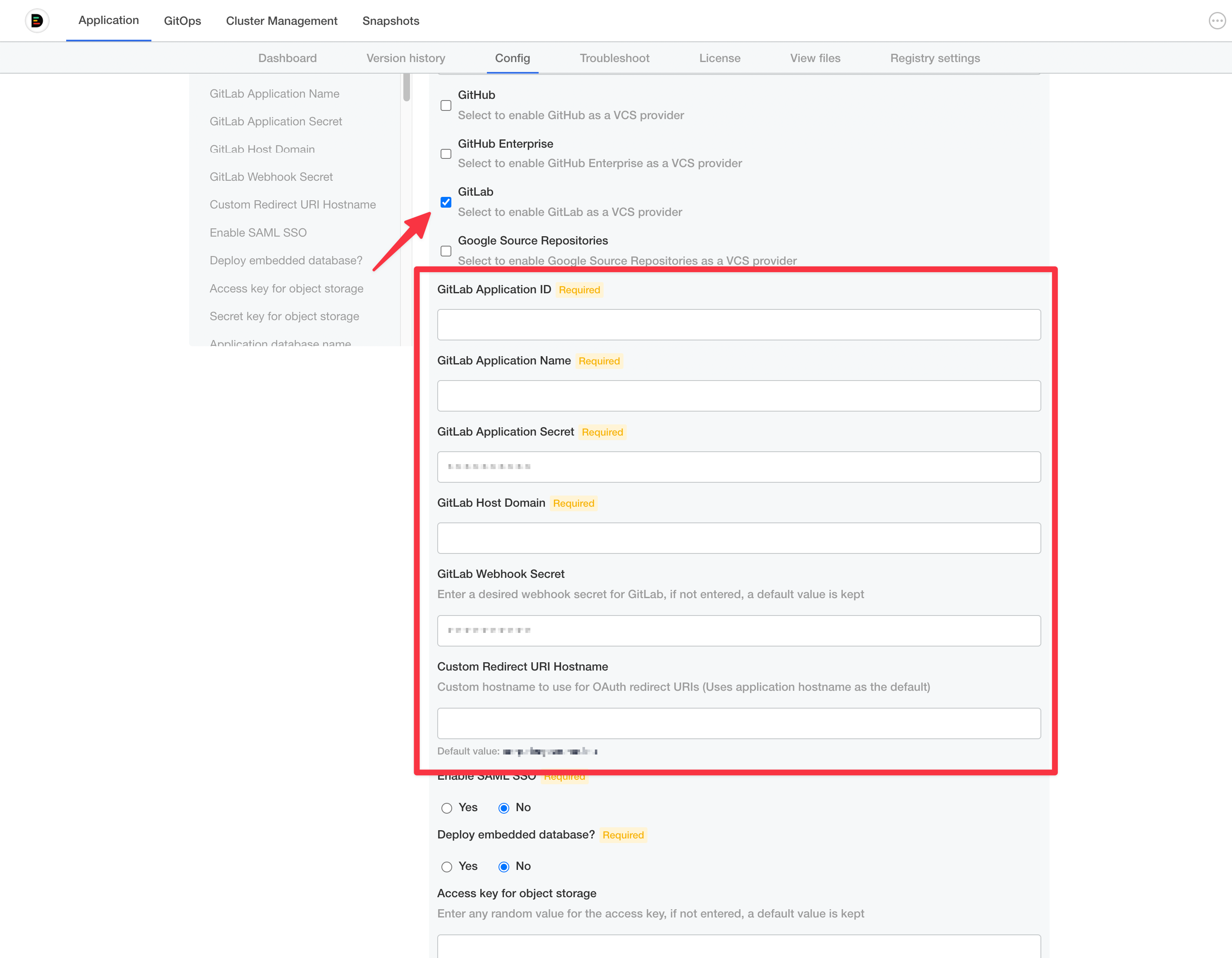
Configuring the GitLab application in the Admin Console
After you create your GitLab application, you need to configure these in the Admin Console for the application to use it.
- Visit the Admin Console
- Navigate to Application -> Config.
- Select the checkbox for GitLab
- Fill up the values from the previous step for:
- GitLab Application ID
- GitLab Application Name
- GitLab Application Secret
- GitLab Host Domain
- GitLab Webhook Secret
- Save
Note: You can ignore the Custom Redirect URI Hostname field if you are using the same domain for all traffic.