Setup: Admin Console
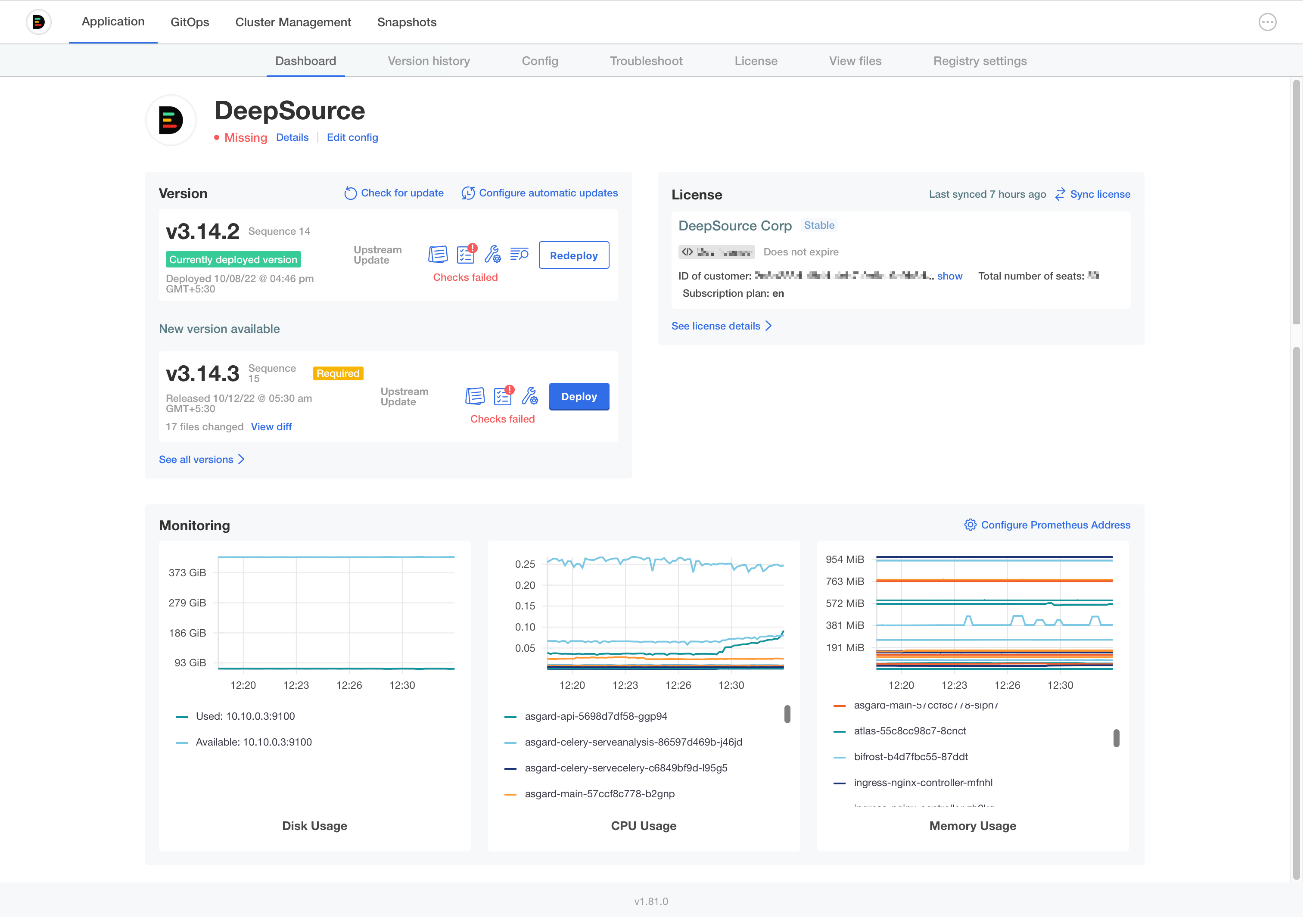
The admin console is used to install and configure your DeepSource enterprise installation. The Admin Console contains the following sections:
- Application
- Dashboard
- Version history
- Config
- Troubleshoot
- License
- View files
- Registry settings
- GitOps
- Cluster Management
- Snapshots
Application
The Application tab is used for installing and upgrading the DeepSource Enterprise application, configuring your installation, etc.
Dashboard
The Dashboard section shows you a quick preview of the state of your application.
Version history
The Version History tab shows you all versions of the DeepSource application that are available to you. Clicking on the Deploy button will deploy the selected version of the app to your cluster.
Some releases are marked as
Required. For upgrading to the latest version, you must deploy allRequiredversions in order between your current version and the latest version before upgrading to the latest version.
You can press the Check for update button to check for new updates that maybe available.
Config
This tab is used to configure your DeepSource app.
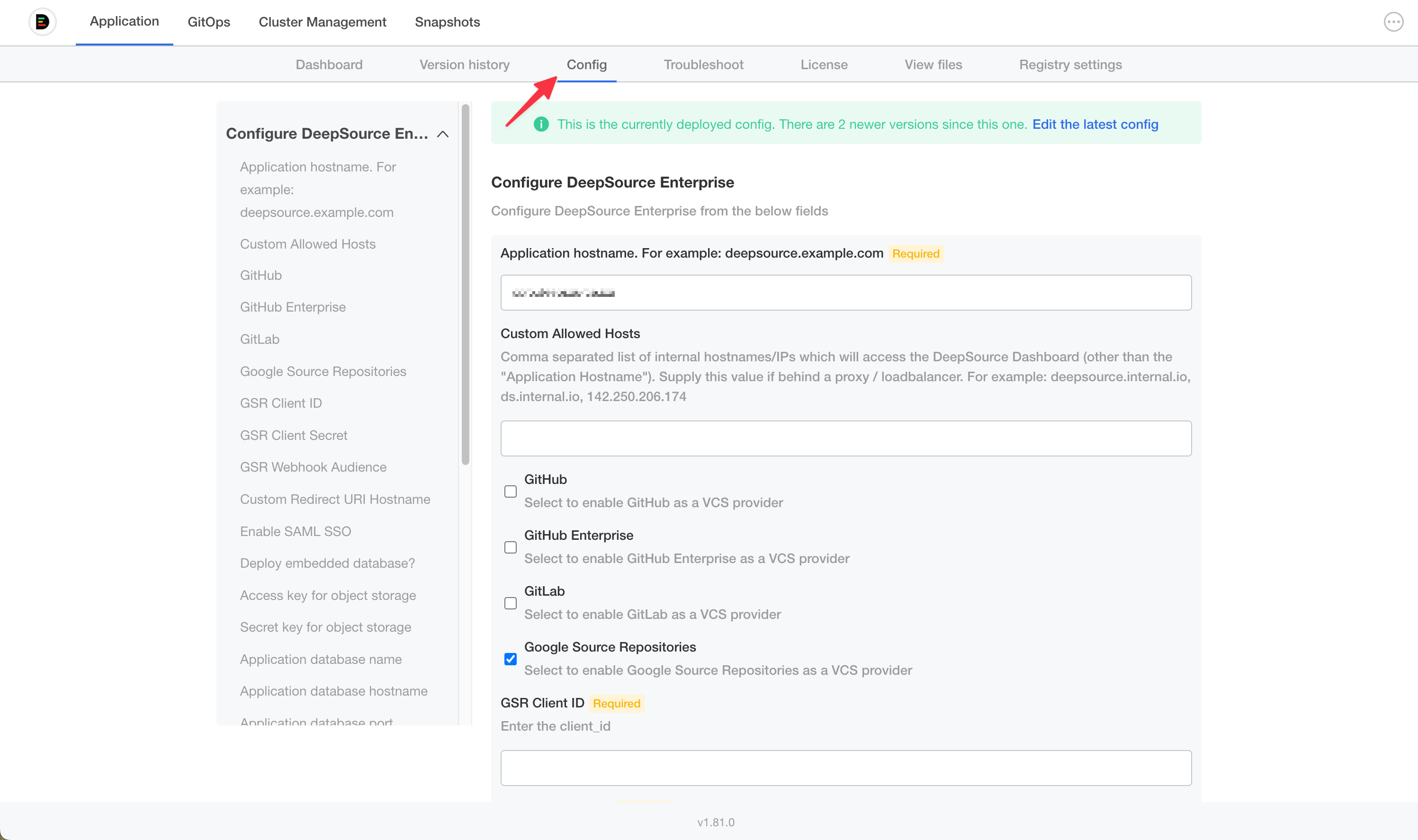
Application hostname: Provide the primary hostname/IP through which you will access the DeepSource application. Please note that, your version control system should be able to send webhooks to the application using this hostname/IP.
Custom Allowed Hosts: Allows you to provide additional hostnames or IP addresses that must be whitelisted by the application. This can be useful when internal services within your network uses a different hostname to access the DeepSource application.
Version Control Provider: Select and configure a Version Control Provider to integrate with your DeepSource application. DeepSource Enterprise currently supports the following Version Control Providers:
Selecting any Version Control Provider will show additional configuration options to configure. A detailed guide to integrating with your Version Control Provider is available in the Setup section of the docs.
Enable SAML SSO: Configure SAML SSO for your application. A guide to integrating your SSO provider is available in the SSO section of the docs.
Deploy embedded database: When enabled, the application will automatically provision an embedded database within the cluster. This is often recommended for pilot installations and is not recommended in production. A detailed guide on setting up an external database is available here.
Access key for object storage: Application database username: Application database password:
Upload TLS certificate and private key?: This option is used to configure the TLS settings. A detailed guide on setting up TLS is available here.
Node selectors: DeepSource contains two classes of workloads. The application workloads and the analysis workloads. Separating application workloads from the analysis workloads is highly recommended. This is done to prevent resource contention surges from affecting your application. You can attach node labels for your nodes using the following command:
COMMAND
- Node selector label for application workloads: Set the labels to identify nodes that will run the application workloads. Eg:
deepsource: application - Node selector label for analysis workloads: Set the labels to identify nodes that will run the analysis workloads. Eg:
deepsource: analysis
DeepSource Enterprise Admins: Enter a comma separated list of users who will have access to the Enterprise Control Panel. You can add these e-mail addresses pre-emptively and once the user with the e-mail address onboards, they will have access to the Enterprise Control Panel.
Cluster Management
This section would be visible if you are using the Standalone installation method. The cluster management section provides information about the nodes in your cluster. The cluster management portal allows you to:
- Drain node: This lets you safely drain a node. This can be used when you need to restart or delete a node.
- Add a Node: This will generate a command that you can execute to add a newly provisioned node to your cluster.
Snapshots (Backups)
You can backup your cluster through the Admin Console. Advnaced documentation for this is directly available on Replicated documentation page.
FAQs
How do I reset my Admin Console password?
In case you forget the password for your Admin Console, you can easily reset it by running this command from within your cluster:
kubectl kots reset-password <namespace>