Integration: Jira Cloud
To integrate DeepSource with Jira Cloud you need a Jira OAuth 2.0 application. This document outlines the configuration, permission requirements and app configuration to get started with it.
Creating the Jira Cloud app
-
Go to https://developer.atlassian.com and log into the Developer Console.
-
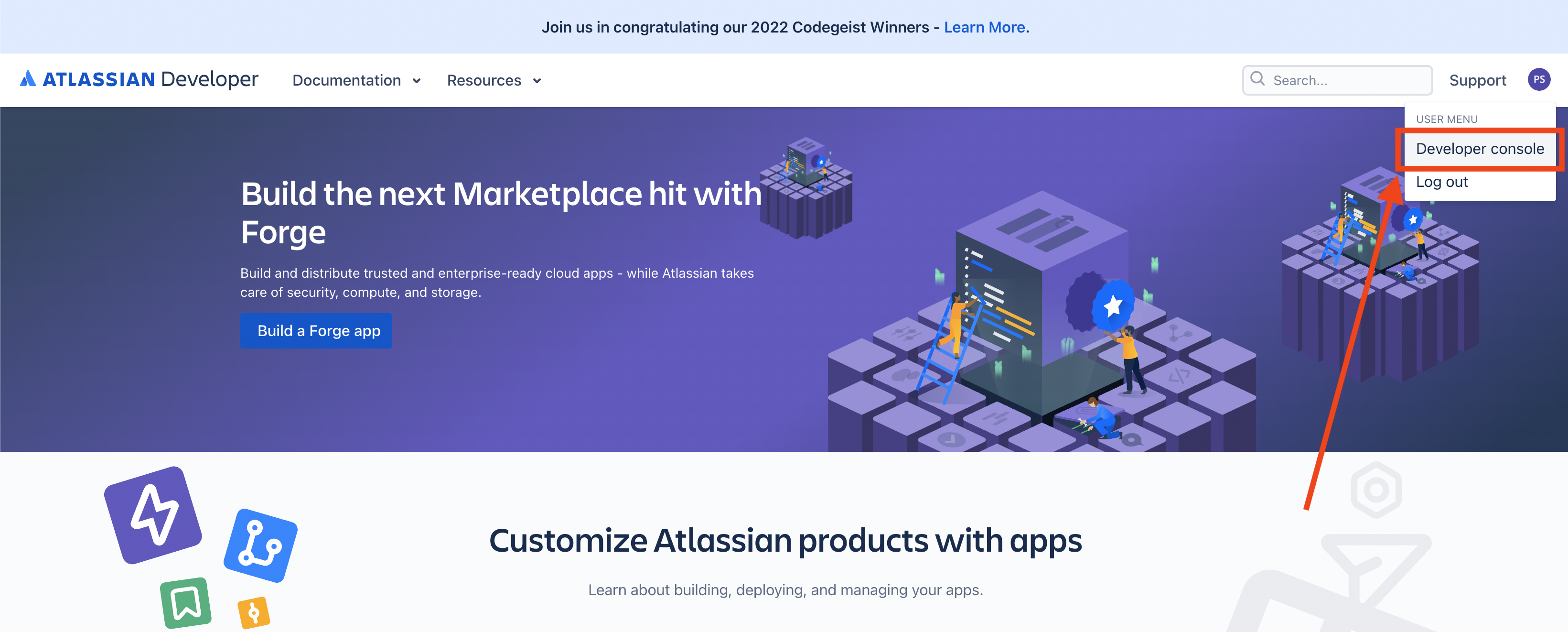
Once logged in, click on you avatar on the top right and select Developer Console.
-
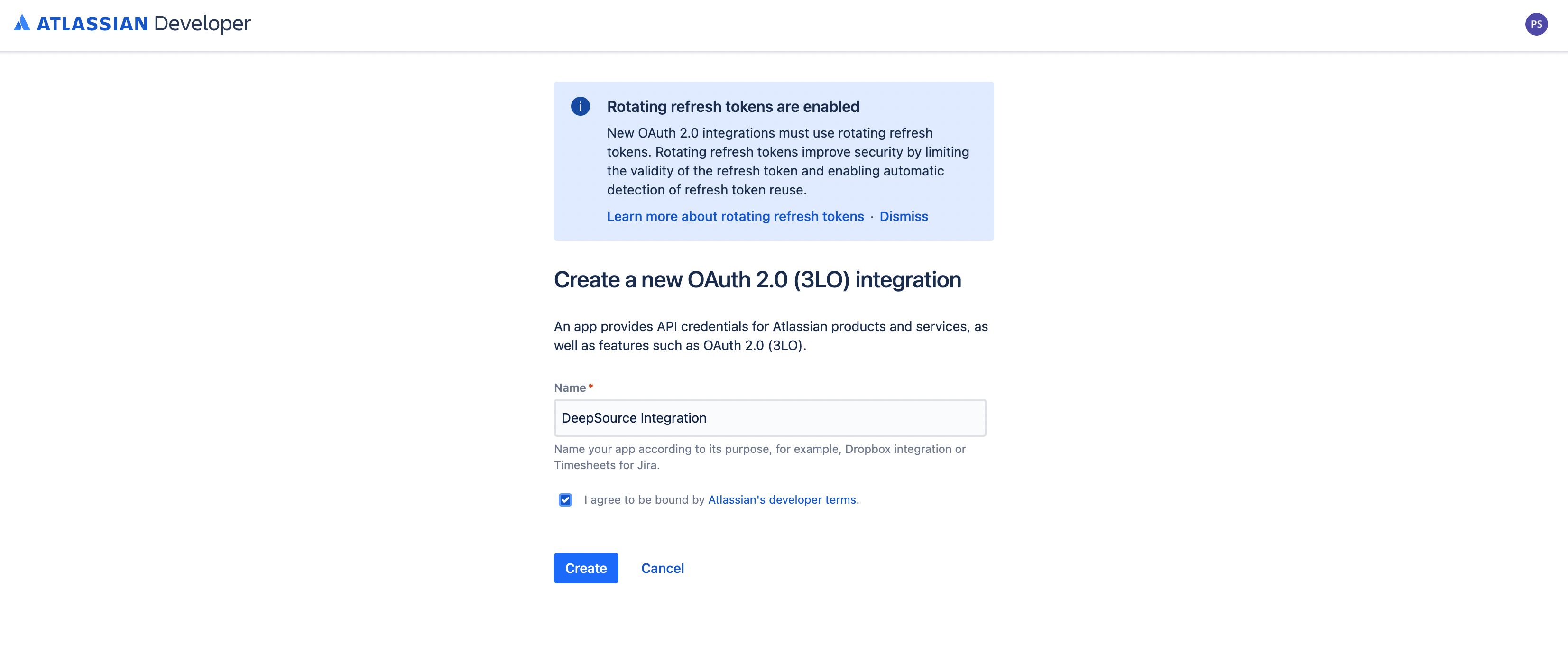
Click on Create > OAuth 2.0 integration.
-
Give a name to the app and click on Create.
-
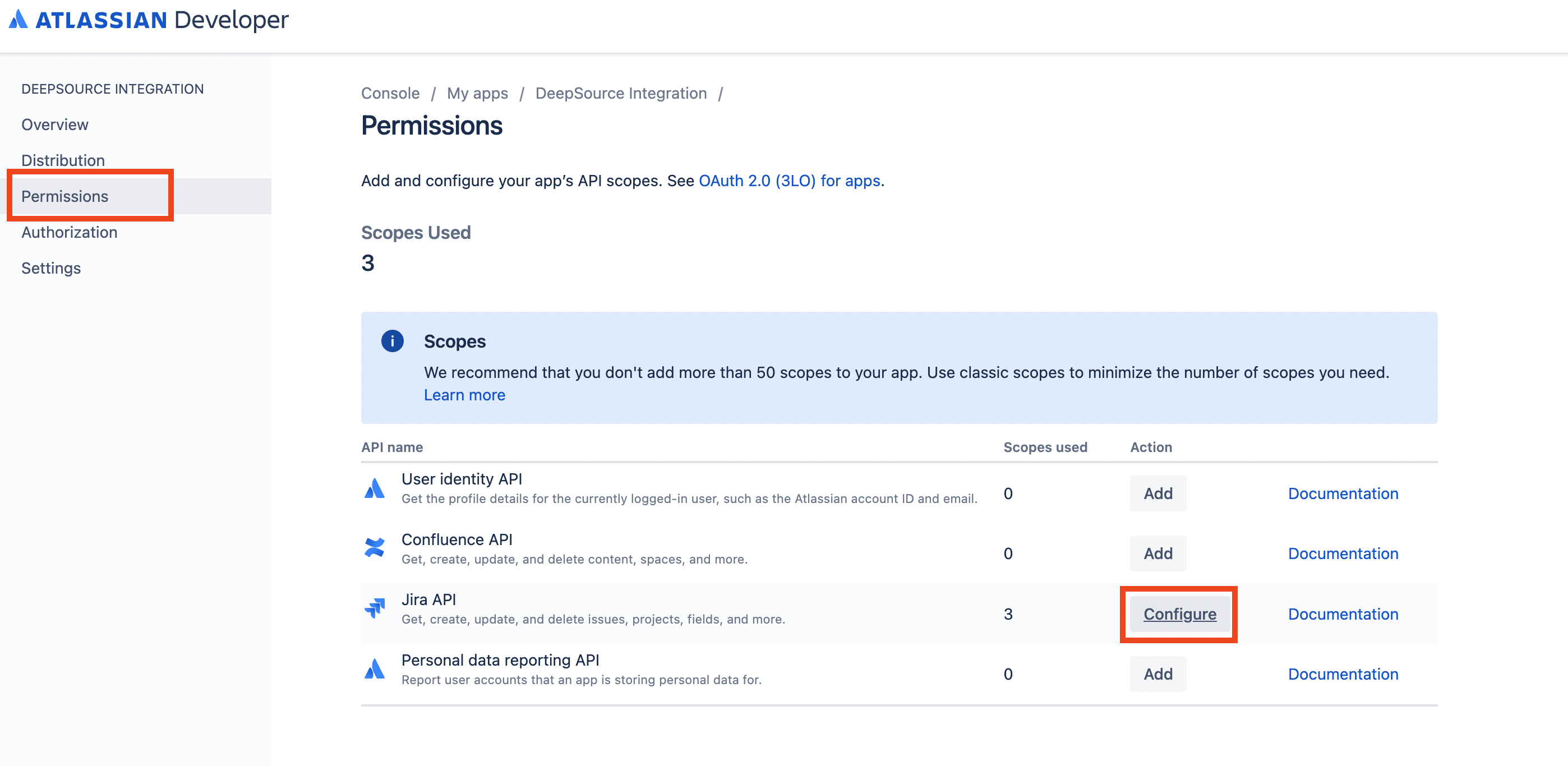
Navigate to the Permissions tab. Against the Jira API click on Add and then click on Configure.
-
In the Jira platform REST API section click on Edit Scopes and select the following scopes:
read:jira-workread:jira-userwrite:jira-work

-
Navigate to the Authorization tab. Against OAuth 2.0 (3LO) click on Add and add the following callback URL:
https://<HOSTNAME>/callback/integrations/jira.(Replace
<HOSTNAME>with your DeepSource instance's hostname, for e.g. if your<HOSTNAME>isdeepsource.stark.com, then the callback URL will behttps://deepsource.stark.com/callback/integrations/jira).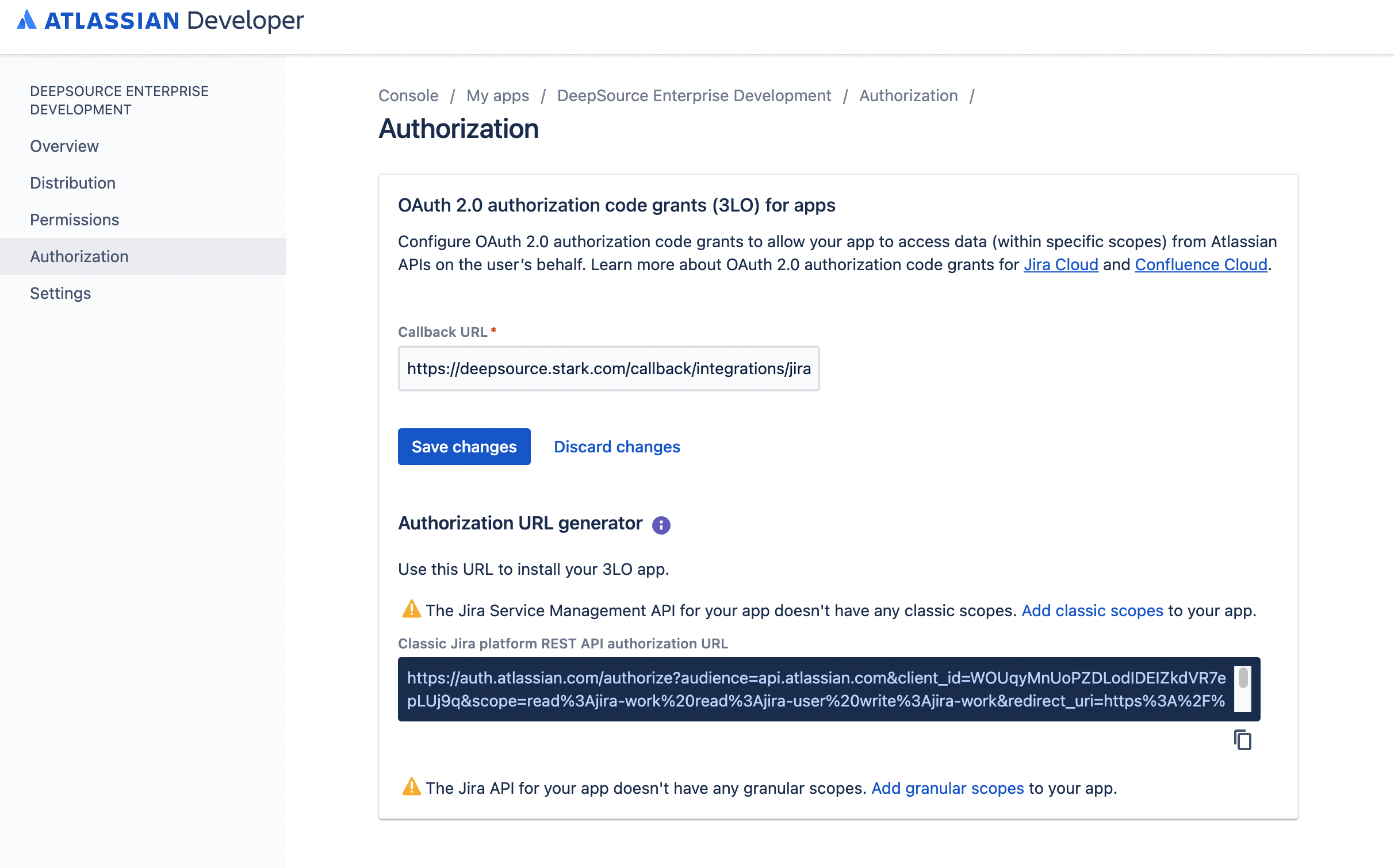
-
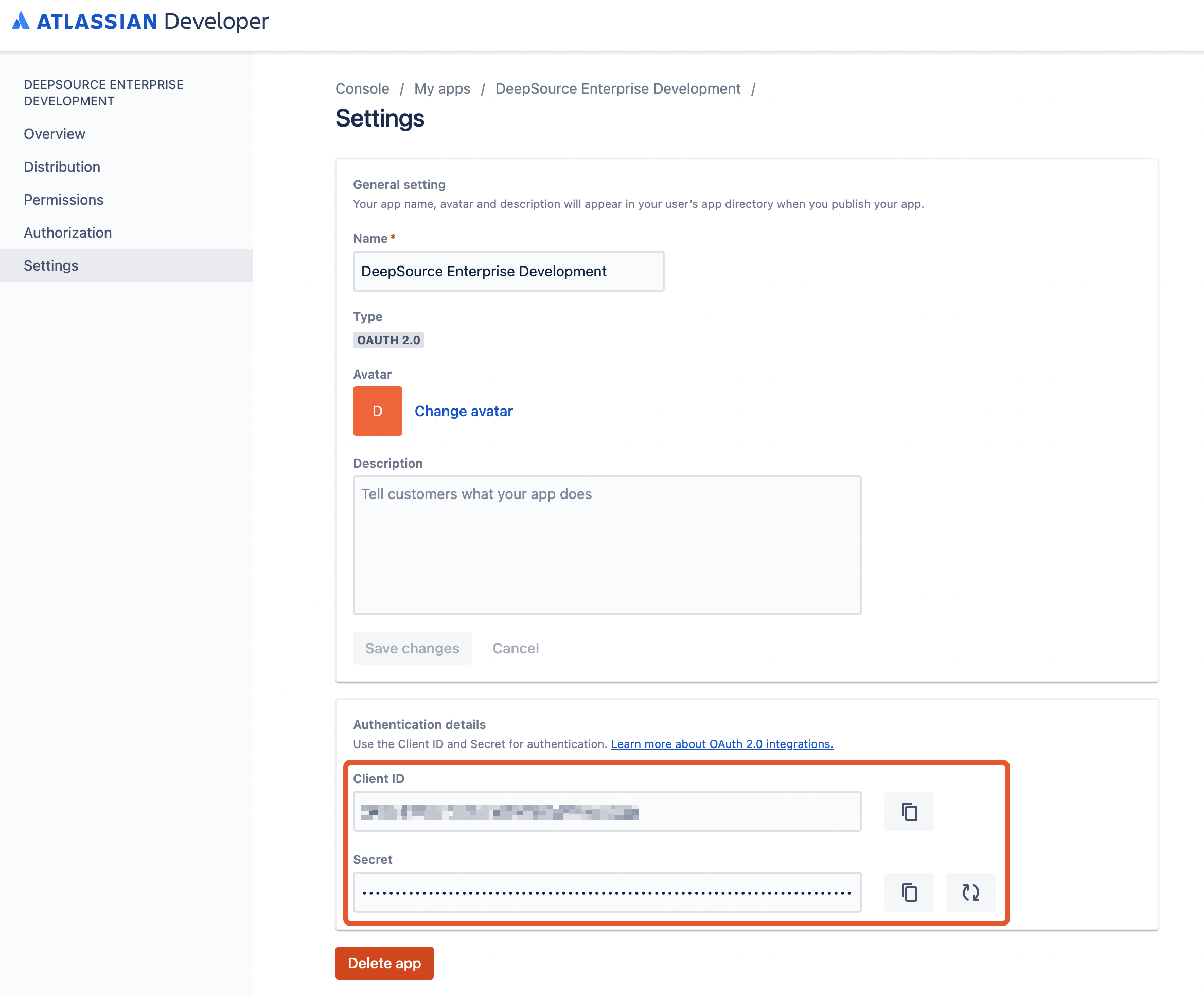
Navigate to the Settings tab and note down the following values:
- Client ID
- Secret
Configuring the Jira Cloud app in the Admin Console
After you create your Jira Cloud application, you need to configure Client ID & Secret in the Admin Console for the application to use it.
- Visit the Admin Console.
- Navigate to Application -> Config.
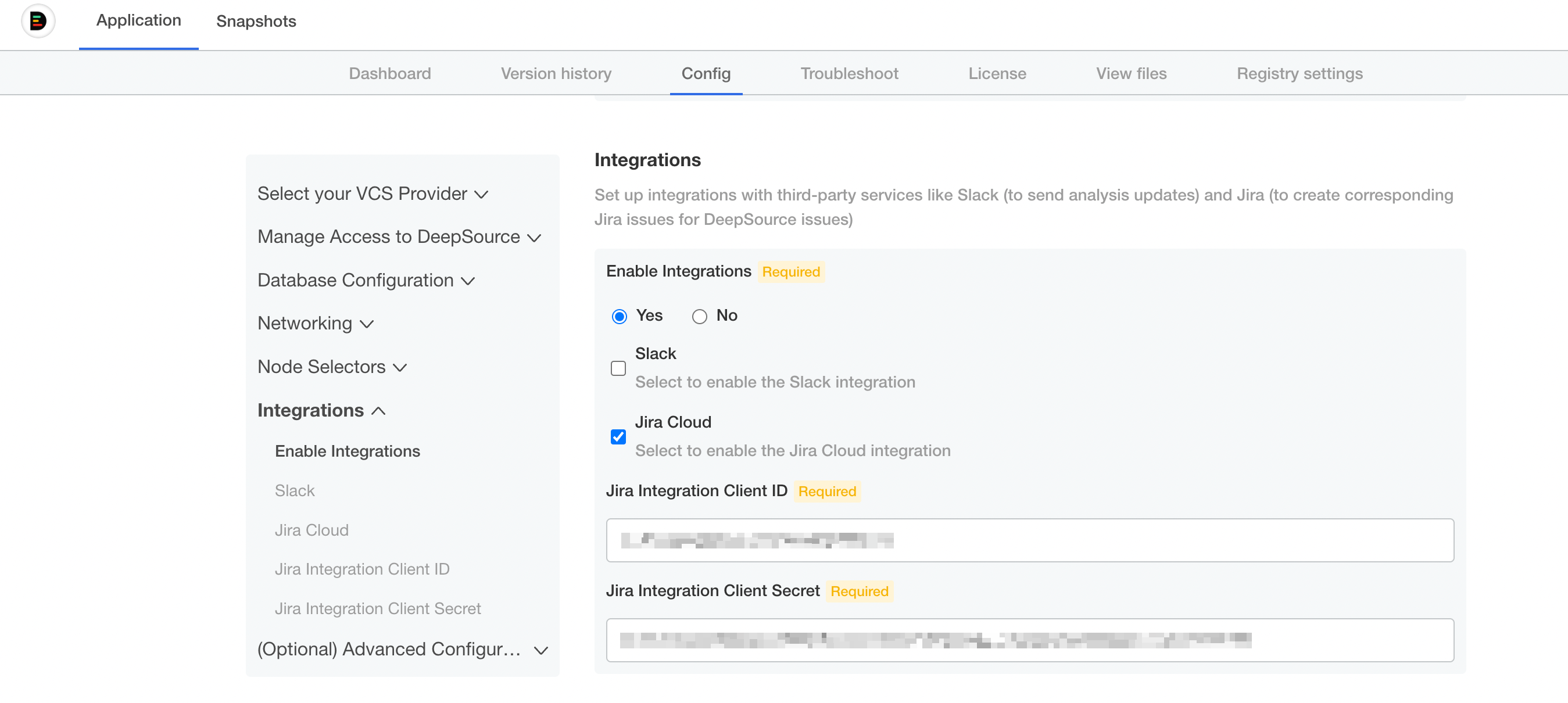
- In the Integrations section, set "Enable Integrations" to "Yes" and select the "Jira Cloud" checkbox.
- Fill up the values from the previous step for:
- Jira Integration Client ID
- Jira Integration Client Secret
- Save.