SAML SSO & SCIM: Azure AD
This document explains the process to enable SAML SSO and SCIM on DeepSource Enterprise Server using Azure Active Directory (AD) as the Identity Provider (IdP).
SAML SSO
Configuring SSO on Azure AD
For now, an admin (on Azure) needs to create a custom SAML connector for DeepSource Enterprise. The steps for which are as given:
-
Visit https://portal.azure.com/ and log in to your Microsoft account.
-
From your home screen, click the hamburger menu in the top left and then “Azure Active Directory” → "Enterprise applications".
-
Then, click on "New application" and then click on “Create your own application”.
-
Fill in the following details and click “Create”:
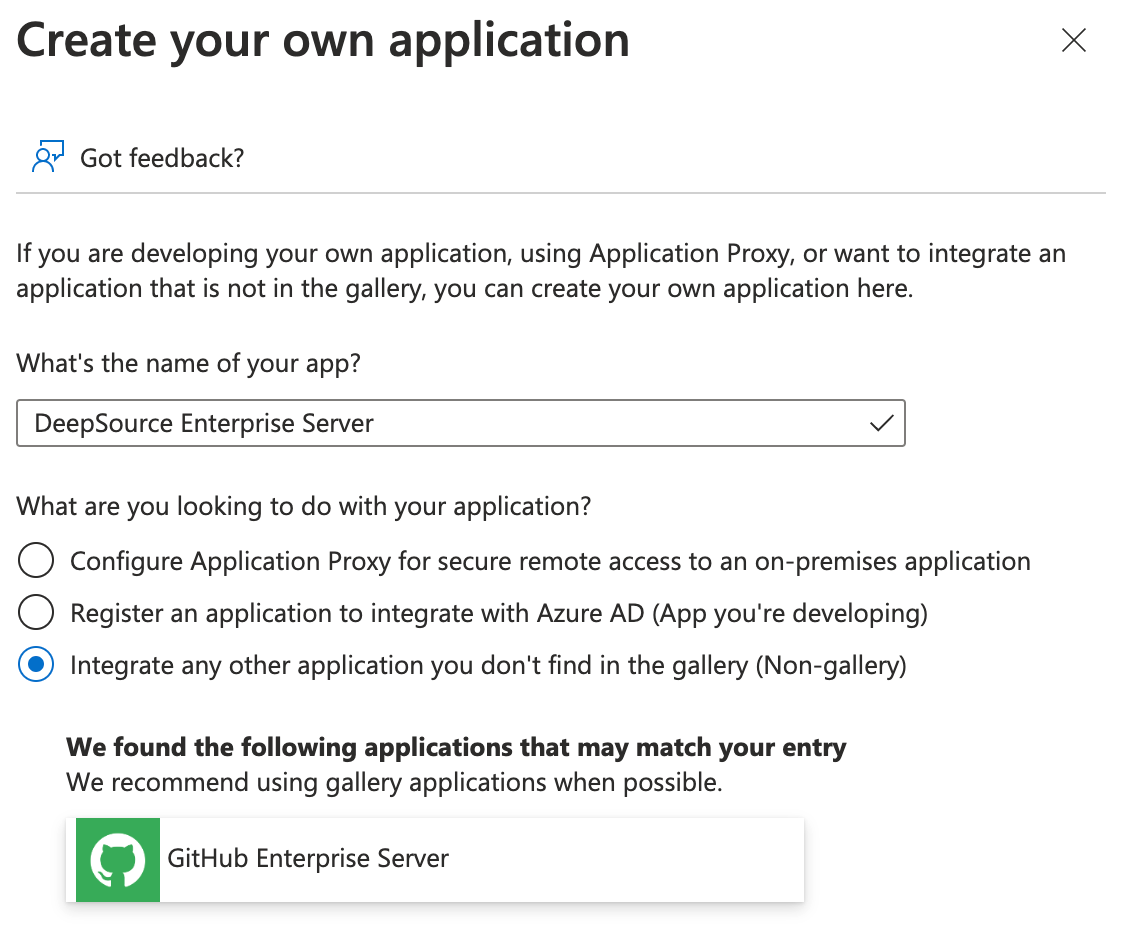
Field Value What’s the name of your app? DeepSource Enterprise Server What are you looking to do with your application? Integrate any other application you don't find in the gallery (Non-gallery) -
From the home screen of this new application, click on “Set up single sign on” and then “SAML”.
-
Click on “Edit” against the “Basic SAML Configuration” heading.
-
Assuming that DeepSource is hosted on
https://deepsource.foobar.com, fill in the following details accordingly leaving the rest of the fields with defaults and click “Save”:Field Value Identifier (Entity ID) https://deepsource.foobar.com/saml2/metadata/Reply URL (Assertion Consumer Service URL) https://deepsource.foobar.com/saml2/acs/Sign on URL https://deepsource.foobar.com/saml2/acs/Logout URL https://deepsource.foobar.com/saml2/ls/post/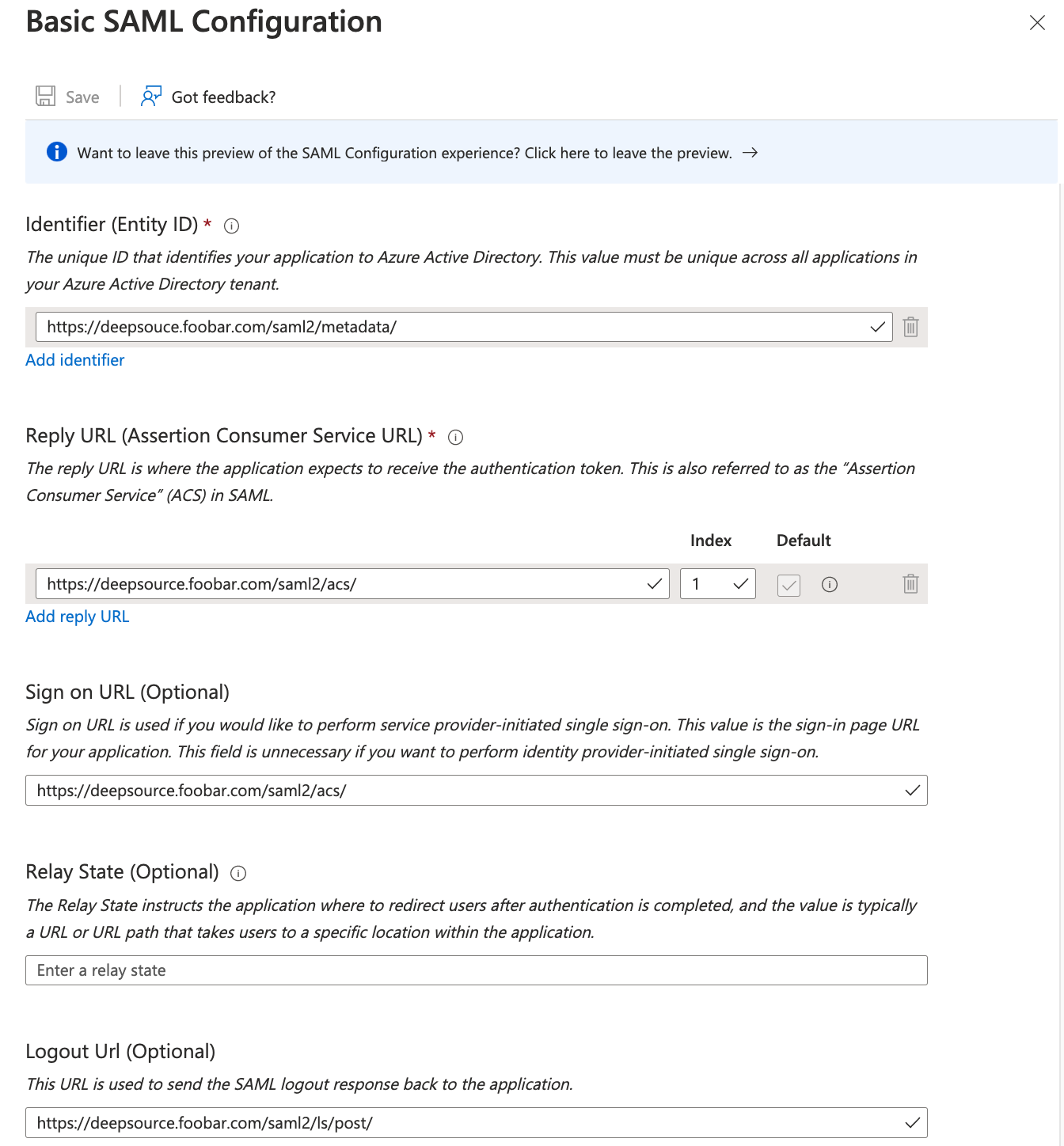
Double click on the image to zoom in!
-
Click on “Edit” against the “Attributes & Claims” heading.
-
Fill in the following details and click “Save”:
Name Source Namespace Source attribute Unique User Identifier (Name ID) Attribute <default> user.userprincipalname (from dropdown) email Attribute <default> user.mail (from dropdown) first_name Attribute <default> user.givenname (from dropdown) last_name Attribute <default> user.surname (from dropdown) 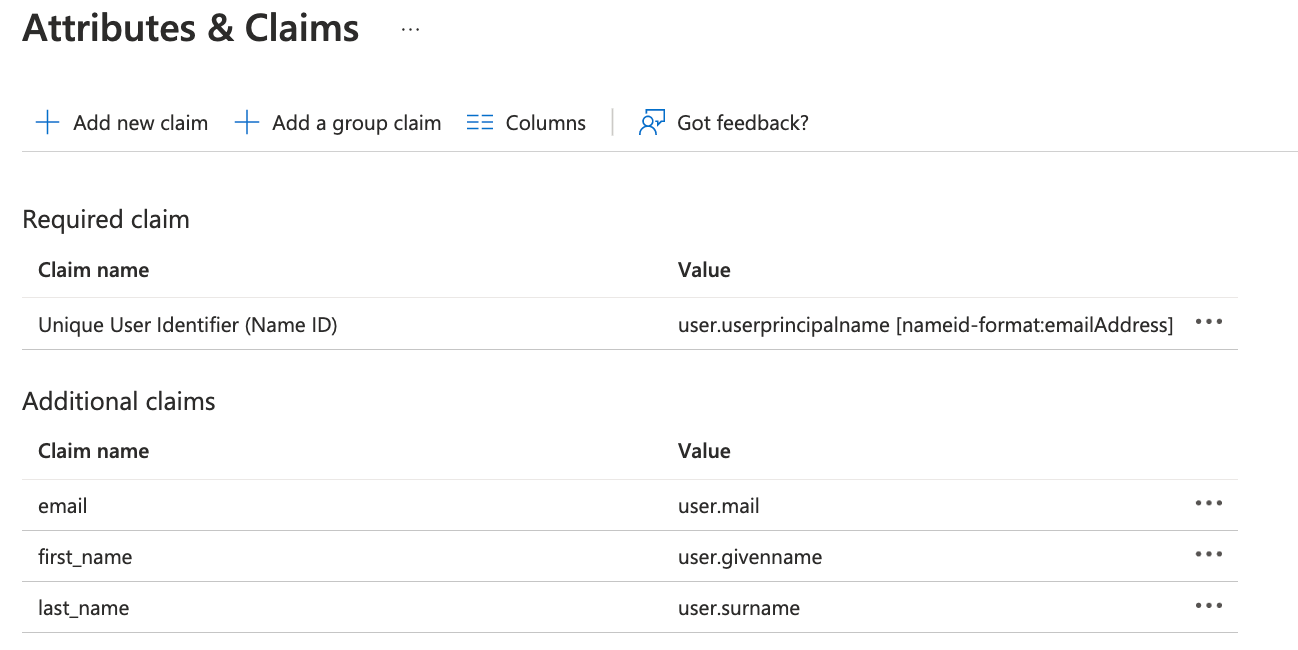
-
Now we need to select which users can access this application for sign-in into DeepSource. You can either choose to disable assignment to grant access to all users in your AD (follow steps in option a) or you can selectively grant access to specific users (follow steps in option b).
- Navigate to “Properties” using the menu on the left. Turn “Assignment Required?” to “No” and click “Save”.
- Navigate to “Users and Groups” using the menu on the left then click “Add user/group” → “None Selected” then select the users from the list on the right and click “Select” → “Assign”.
-
Navigate to “Single sign-on” again using the menu on the left and copy the “App Federation Metadata Url” under the “SAML Signing Certificate” section. Make sure the URL starts with
https://login.microsoftonline.com/. -
At this point, SAML-based Sign-on has been configured successfully. You can also choose to test to verify the connection by clicking the “Test” → “Test sign in” buttons on the “Single sign-on” page.
Changes on Kotsadm
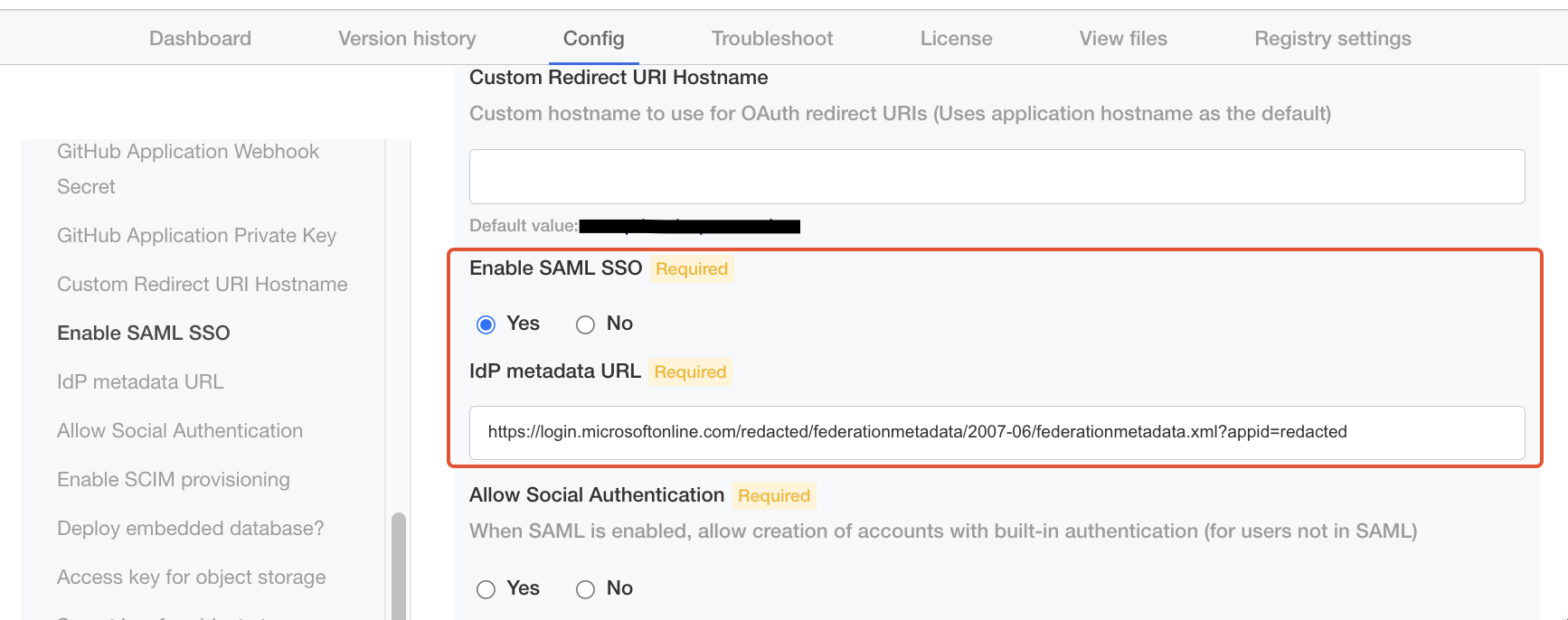
Once SAML has been configured on Azure AD, navigate to the “Config” tab in the Admin panel:
-
Check "Yes" for "Enable SAML SSO".
-
Enter the URL copied in Step 10 above in the "IdP metadata URL" field.
-
One last piece of configuration is whether you want to enable social authentication (i.e. allowing users to be created/log in with GitHub) alongside SAML. In this case, users will be allowed to either sign in via SSO or via OAuth. Choose accordingly.
-
Click “Save”, and deploy the new version.
🎉 You should now be able to Sign in to DeepSource Enterprise with SAML SSO.
SCIM Provisioning
Changes on Kotsadm
Navigate to the “Config” tab in the Admin panel:
- Check "Yes" for "Enable SCIM provisioning".
- Enter a strong secret of your choice in the "SCIM Authentication token"
💡 Keep this token saved somewhere, you will need to enter this in Azure while setting up SCIM provisioning
- Click save, and deploy the new version.
Configuring SCIM on Azure AD
-
To Enable SCIM Provisioning, go to the DeepSource application you created on Azure in the previous section.
-
Navigate to “Provisioning” using the menu on the left and click on “Get started”.
-
On the next page, you will see a field named “Provisioning Mode”. Choose “Advanced” from the dropdown and then fill in the following details under the “Admin Credentials” section.
Field Value Tenant URL https://deepsource.foobar.com/scim/v2/Secret Token SCIM Authentication token which you have put in Admin Panel 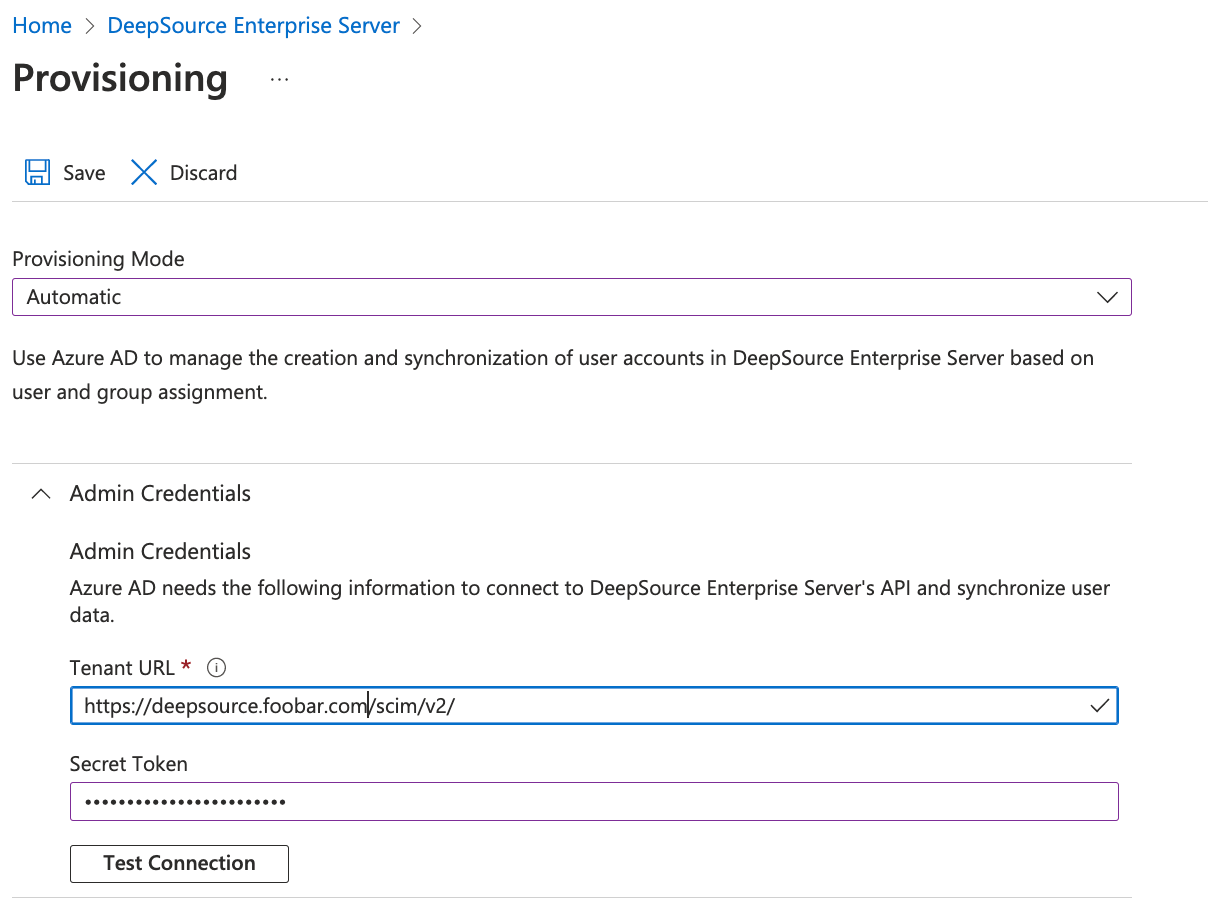
-
Click on “Test Connection” to verify the SCIM connection.
-
Click on ”Save” to apply the settings.
-
Finally, navigate back to the “Provisioning” tab and click on “Start provisioning” to enable the sync.
🎉 You have successfully configured SCIM provisioning for your DeepSource Enterprise via Azure AD.