SAML SSO & SCIM: OneLogin
This document explains the process to enable SAML SSO and SCIM on DeepSource Enterprise Server using OneLogin as the Identity Provider (IdP).
SAML SSO
Configuring SSO on OneLogin
For now, an admin (on OneLogin) needs to create a custom SAML connector for DeepSource Enterprise. The steps for which are as given:
-
On the top menu, go to
Applications → Applications, and click on "Add App". -
Search for and choose “SCIM Provisioner with SAML (SCIM v2 Enterprise, full SAML)”.
-
Fill in the following details and click “Save”:
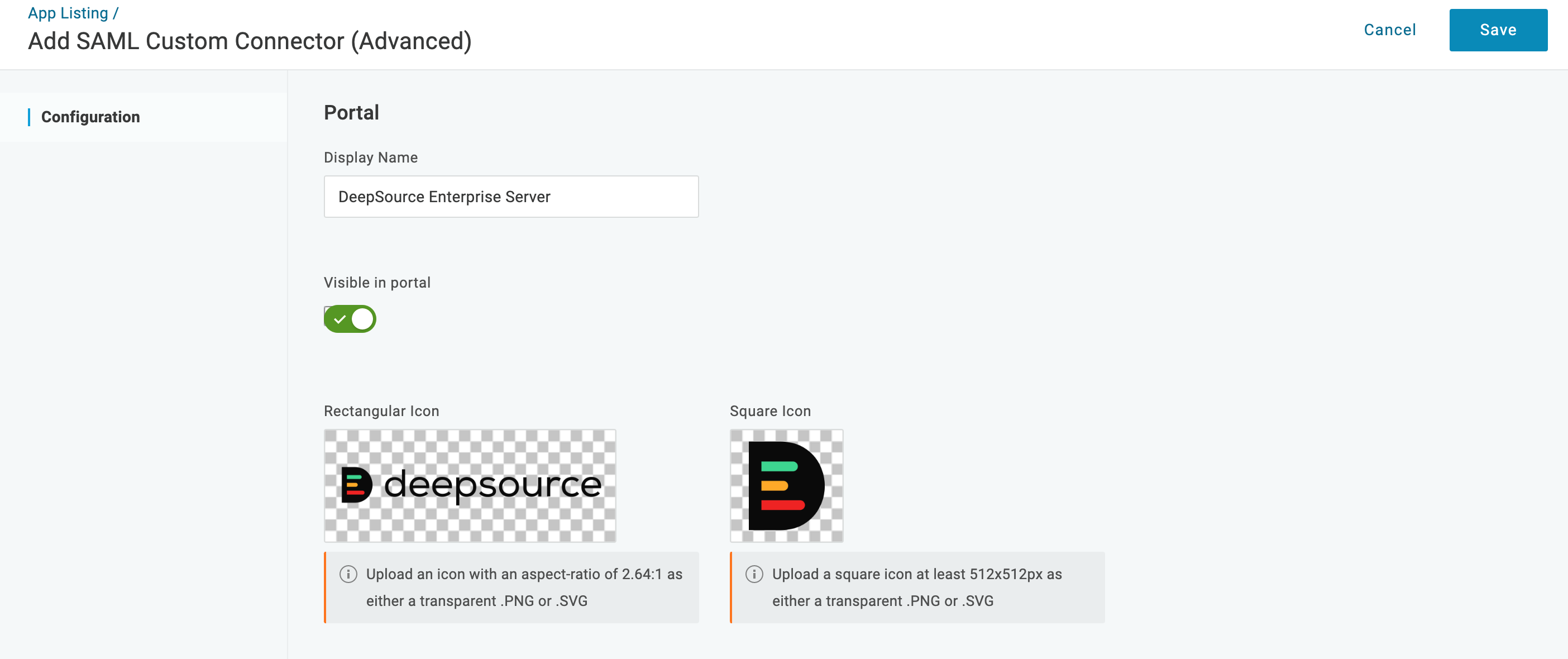
Field Value Display Name DeepSource Enterprise Server -
Navigate to “Configuration” tab using the sidebar on the left.
-
Assuming that DeepSource is hosted on
https://deepsource.foobar.com, fill in the following details accordingly leaving the rest of the fields with defaults and click “Save”: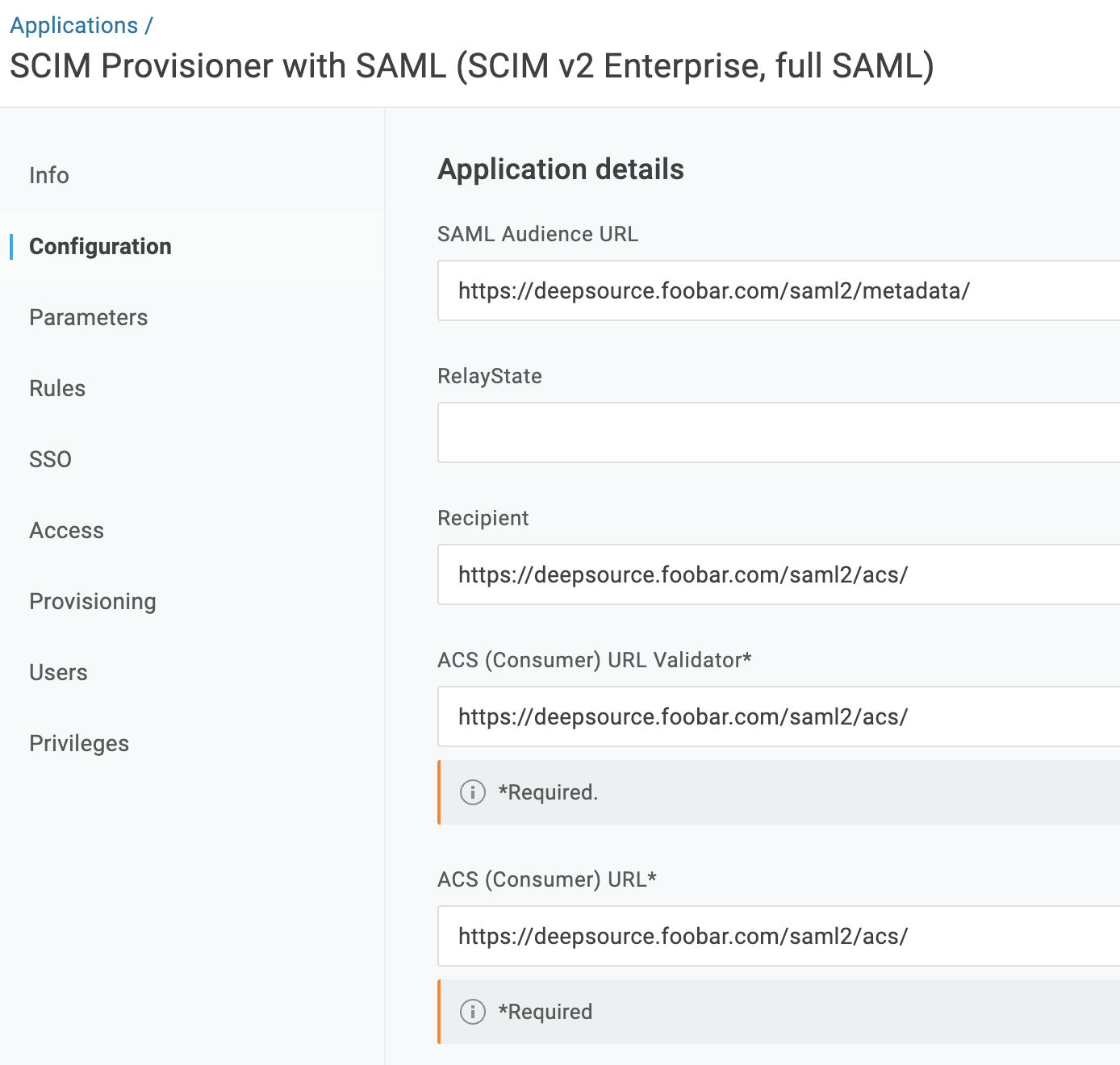
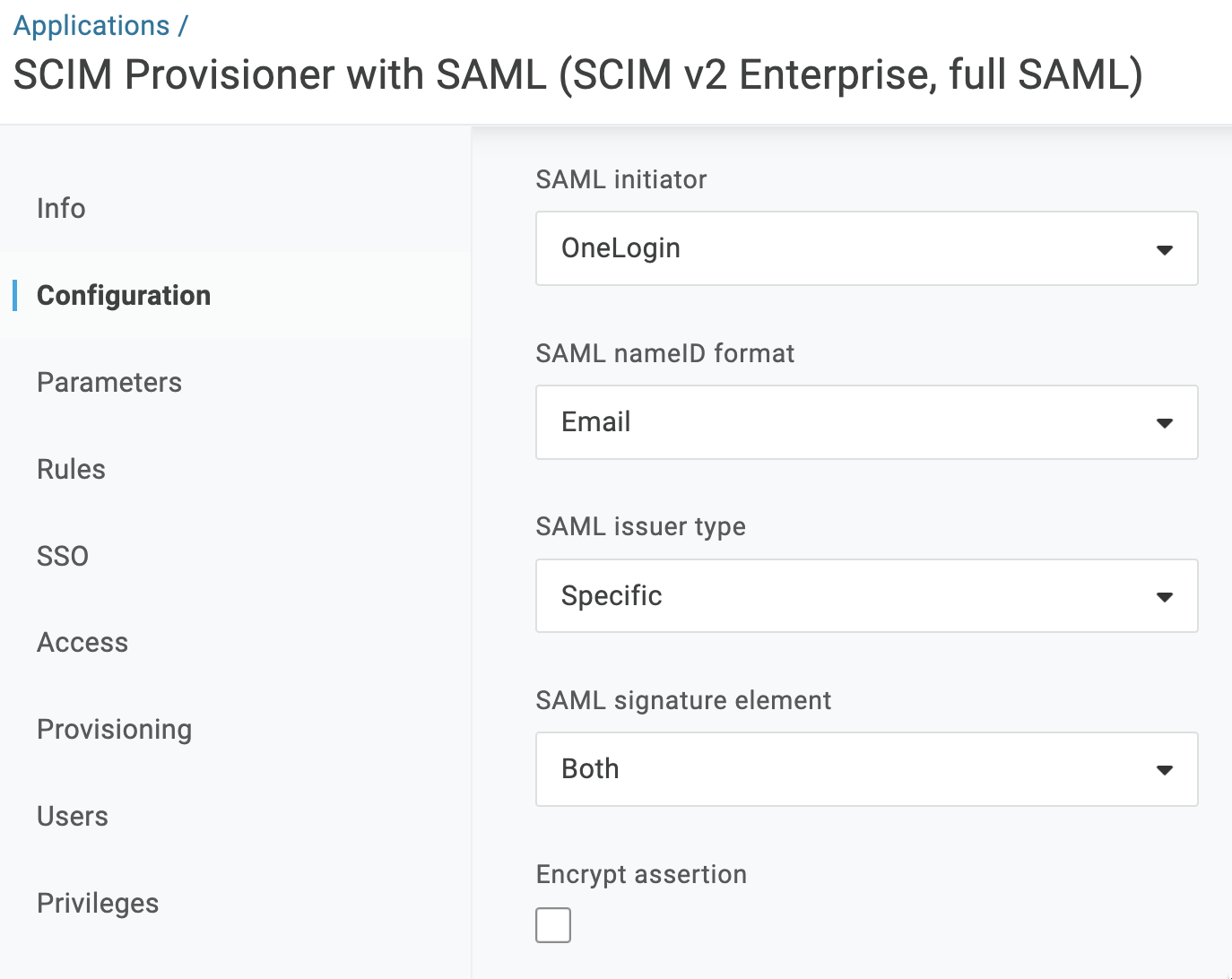
Field Value SAML Audience URL https://deepsource.foobar.com/saml2/metadata/Recipient https://deepsource.foobar.com/saml2/acs/ACS (Consumer) URL Validator https://deepsource.foobar.com/saml2/acs/ACS (Consumer) URL https://deepsource.foobar.com/saml2/acs/SAML signature element Both (from dropdown) -
Navigate to the “SSO” using the sidebar on the left.
-
Change the “SAML Signature Algorithm” field to use a stronger algorithm such as “SHA-512” (from dropdown) and click on “Save”.
-
On the same screen, copy the “Issuer URL”. It should be in the format
https://app.onelogin.com/saml/metadata/<app-uuid>.
Changes on Kotsadm
Once OneLogin has been configured, navigate to “Config” tab in the Admin panel (replicated Kotsadm):
-
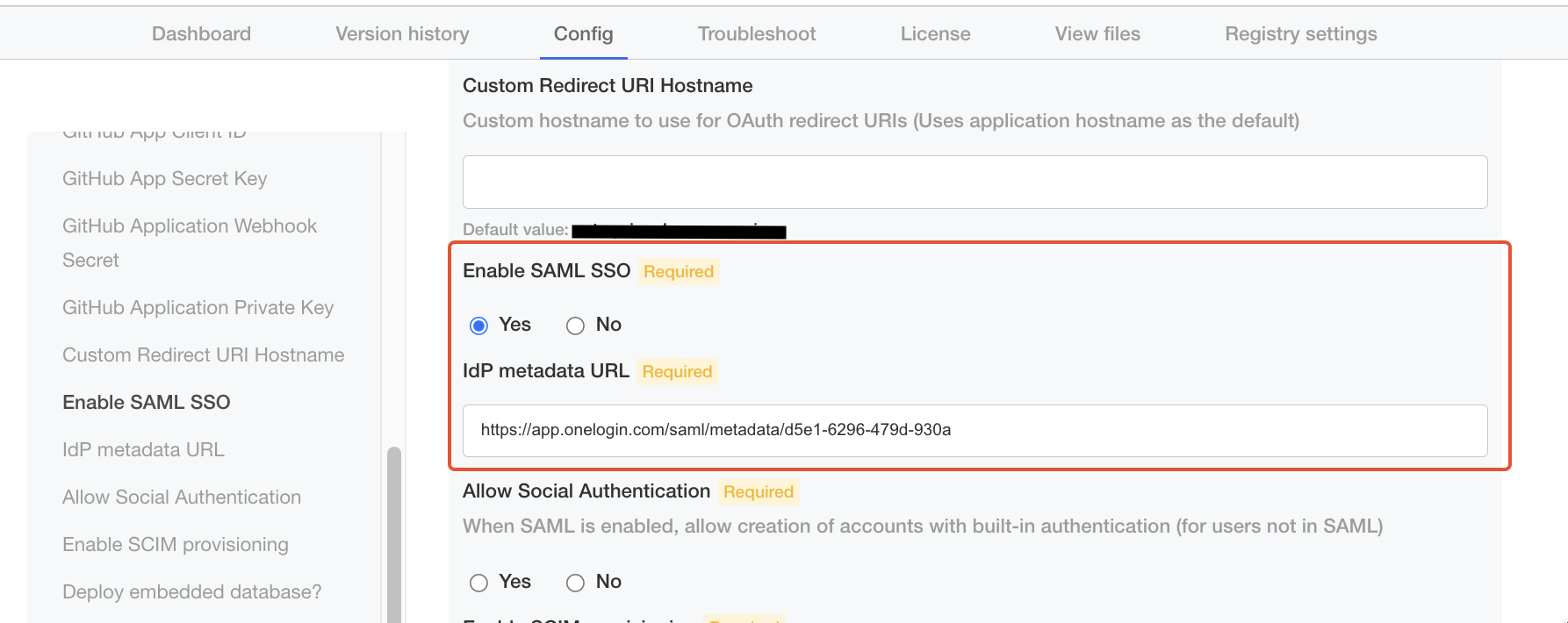
Check "Yes" for "Enable SAML SSO".
-
Enter the URL copied in Step 10 above for "IdP metadata URL".
-
One last piece of configuration is whether you want to enable social authentication (i.e. allowing users to be created/log in with GitHub) alongside SAML. In this case, users will be allowed to either sign in via SSO or via OAuth. Choose accordingly.
-
Click save, and deploy the new version.
🎉 You should now be able to Sign in to DeepSource Enterprise with SAML SSO.
SCIM Provisioning
Changes on Kotsadm
Navigate to “Config” tab in the Admin panel (replicated Kotsadm):
- Check "Yes" for "Enable SCIM provisioning".
- Enter a strong secret of your choice in "SCIM Authentication token".
💡 Keep this token saved somewhere, you will need to enter this in Okta while setting up SCIM provisioning
- Click save, and deploy the new version.
Configuring SCIM on OneLogin
-
To Enable SCIM Provisioning, go to your "DeepSource Enterprise Server" application on OneLogin.
-
Go to the Configuration tab, under API Connection, click on Enable and configure the given parameters.
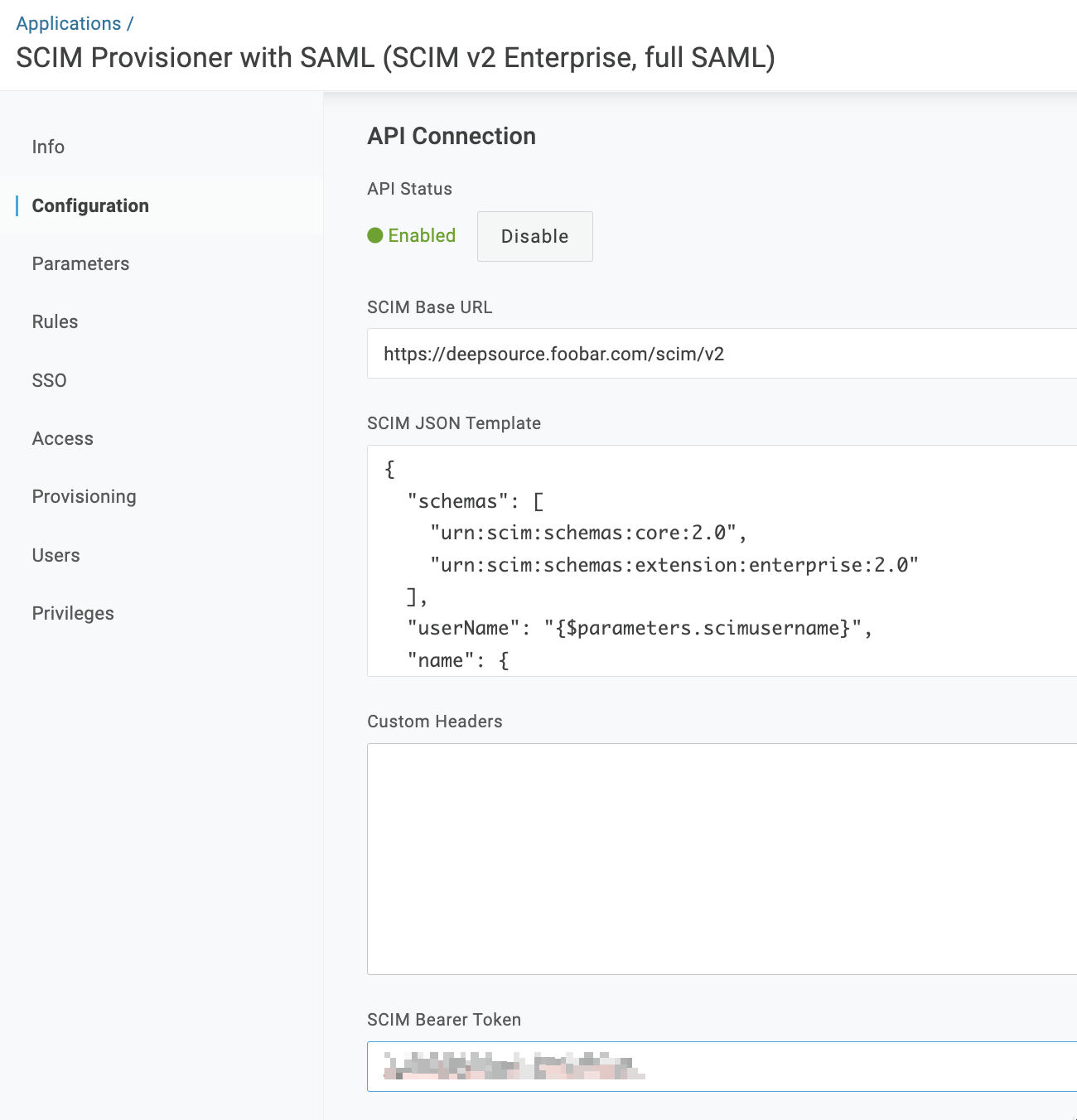
Field Value SCIM Base URL https://deepsource.foobar.com/scim/v2(no trailing slash)SCIM Bearer Token SCIM Authentication token which you have put in Admin Panel in the previous step -
Click Save to apply the settings.
-
Go to the Provisioning tab, and configure the given parameters.
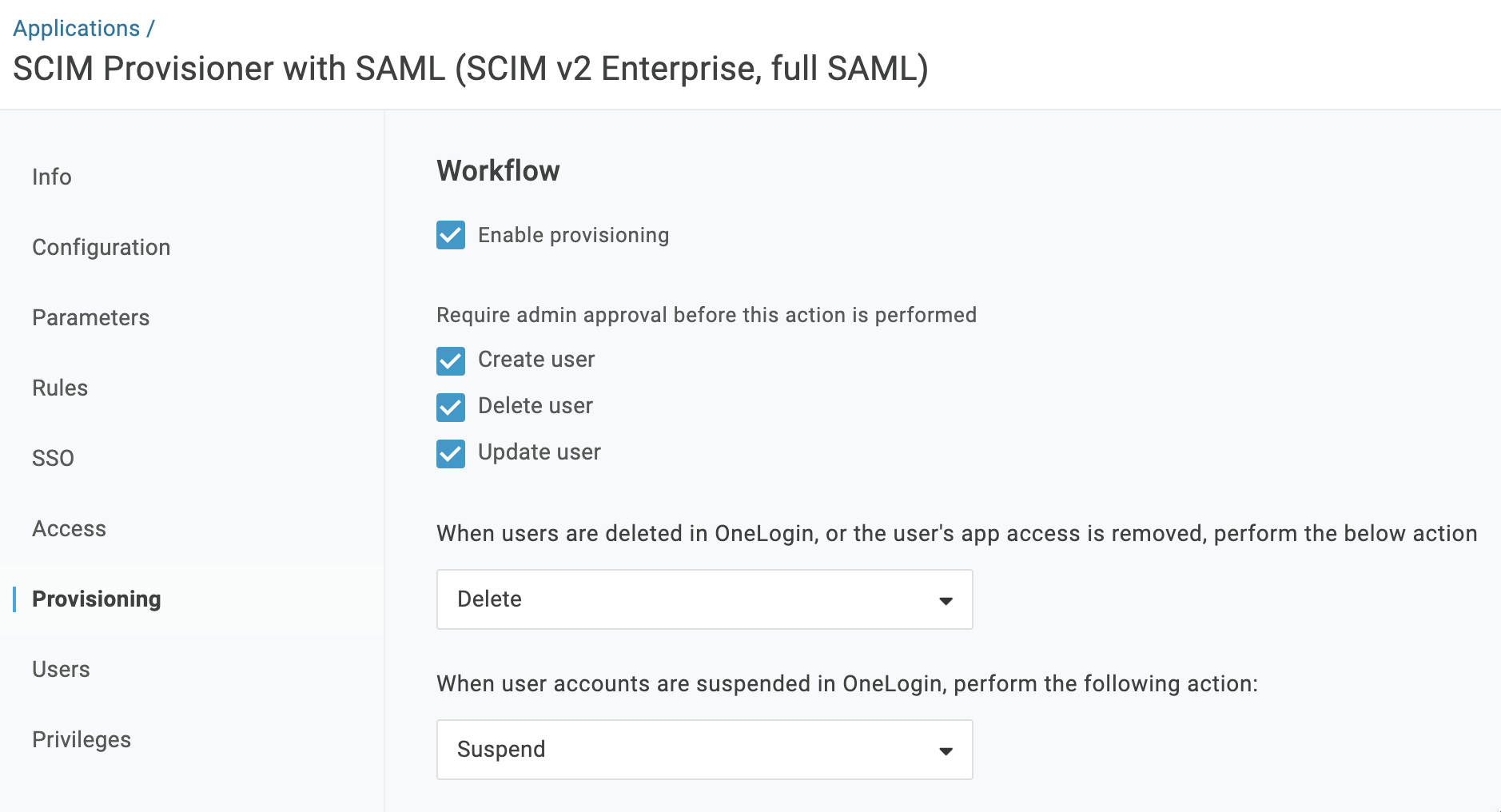
Field Value Enable provisioning ✅ Create user ✅ Delete user ✅ Update user ✅ -
Click Save to apply the settings.
🎉 You have successfully configured SCIM provisioning for your DeepSource Enterprise via OneLogin.